
How to make Anki cards from video games, with the screenshot on every card
A game line you learned in its scene is easier to remember than the same line on a blank card. So most people who study from games end up wanting the same thing: an Anki card with the sentence, what it means, and the screenshot of where it happened.
Making that card by hand is simple. Making fifty of them is where it gets tiring.
The manual way
The usual pipeline looks like this:
- Take a screenshot when a line stops you (ShareX, Steam’s F12, or the Snipping Tool).
- Get the text out. Visual novels can often be hooked with Textractor; for anything else you run OCR on the screenshot.
- Look up the words you don’t know. Yomitan in a browser tab is the common choice, and with AnkiConnect it can create the card for you.
- Paste the screenshot into the card’s Picture field, and add the sentence if the dictionary didn’t.
It works, and many people run it for years. The catch is that every step pulls you out of the game. You stop, alt-tab, clean up the OCR, look up two words, attach the image, and go back. After an hour you have ten cards and have played for maybe twenty minutes.
If you want to set this up properly, the sentence-mining toolkit for games goes through each tool (Game Sentence Miner, Textractor, Yomitan and the rest) and what it’s good at.
Why the screenshot is worth the trouble
Recall leans on context. When a card shows the face, the place and the moment in the story, the line has something to hang on, and the meaning tends to come back with it. Text-only cards from a game lose exactly the part that made the line memorable.
Two habits help regardless of the tool you use. Keep fewer cards than you feel like keeping: the usual failure isn’t too few cards, it’s two hundred half-interesting ones you never open. And fix a bad reading or translation when you make the card, since you’ll be looking at it for months.
Letting the game session build the deck
This is the part we built Playto around. It reads the game screen while you play and shows the original line with its translation. When a line is worth keeping you save it, and that’s the whole interruption. The screenshot, the sentence and its meaning are stored together.
When you sit down to study, open the Album and use Export to Anki (.apkg). You get one file; double-click it and Anki imports a ready deck.
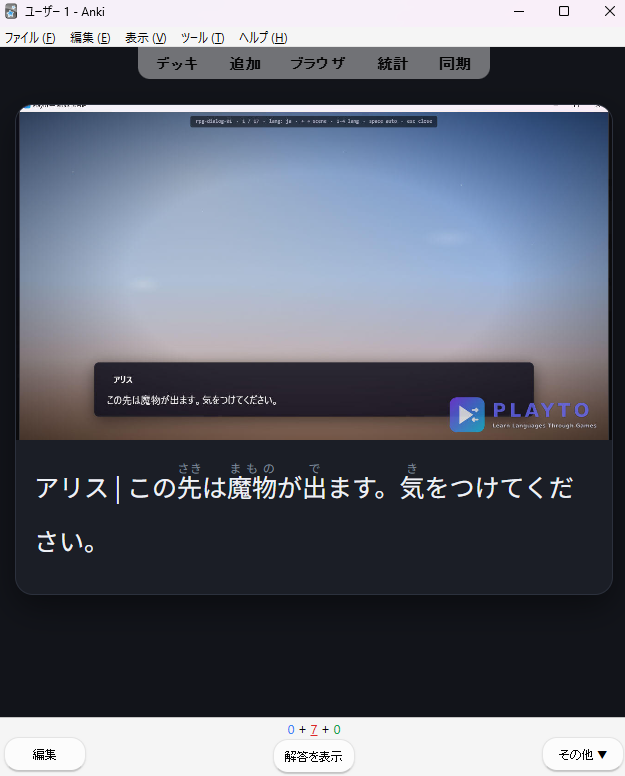
The front shows the scene and the line, with furigana over the kanji for Japanese. The back adds the meaning, and you grade it the usual way.
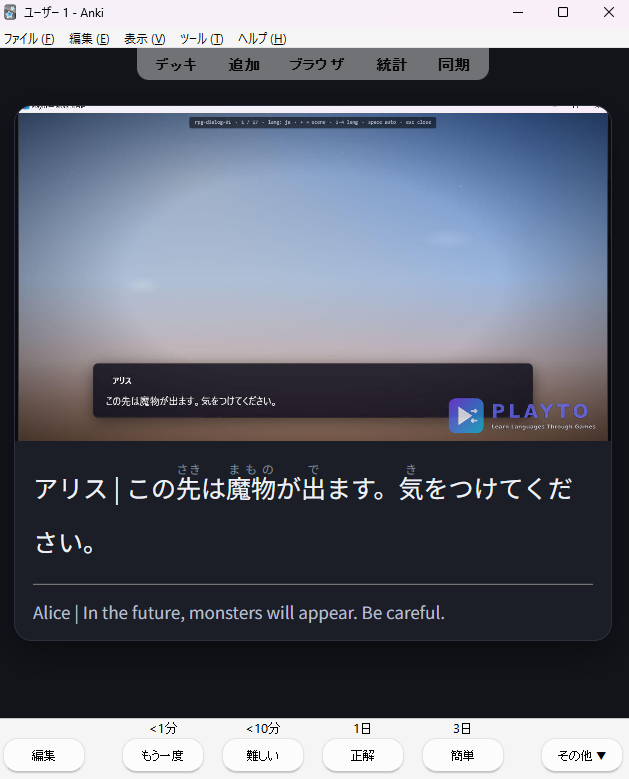
The images travel inside the file, so the deck works the same in Anki on desktop and on your phone, with or without Playto installed. The furigana and meaning are generated, so treat a long or context-poor line as a hint and correct it in Playto before export or in Anki afterwards.
If you already have a note type you like, there’s also a lighter option: use Export to Anki (TSV) from the ”…” menu in Words. You get word, definition and the sentence you met it in as three columns. Import the file with Tab as the separator and map the columns to your own fields.
And if you don’t use Anki, you don’t need to. The same saved lines feed Practice, which has spaced repetition built in, and Album Replay lets you review a line in its scene without exporting anything.
The .apkg export is part of the full version. The free demo lets you try the read-and-save loop on your own games first.